Summary Table of Contents
When an image trace shatters into dozens or hundreds of detached shapes, the root problem is rarely the cutter—it is almost always luminance noise and anti-aliased gradient steps along edges.
- Anti-aliased transitional pixels trick the trace engine into generating layered concentric shells.
- High threshold values pull invisible background compression artifacts directly into cutting paths.
- Applying Weld or Make Compound Path restores continuous vector geometry for reliable blade carriage movement.
01. Threshold Misalignment and Edge Halos
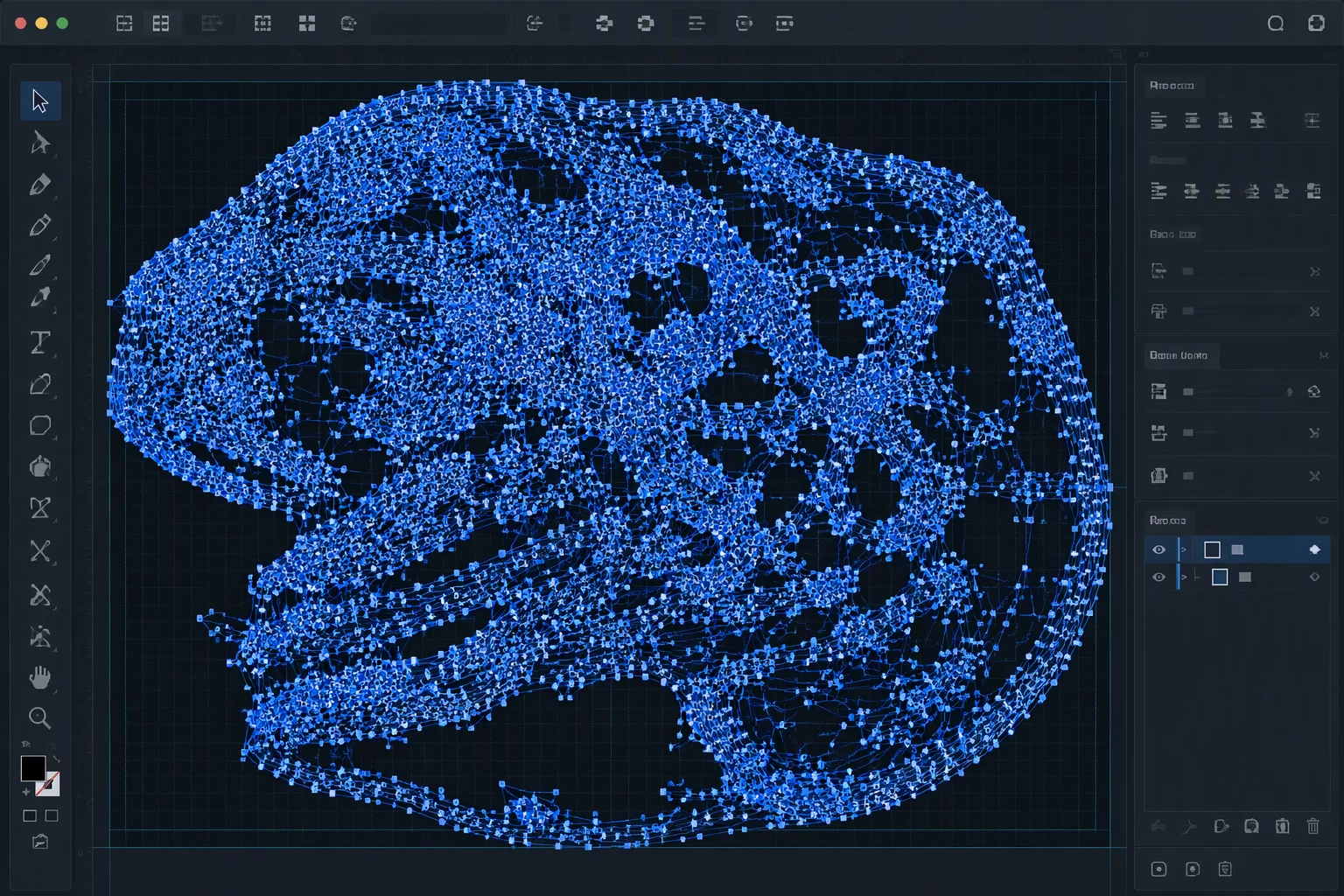
A frequent surprise when running auto-trace in Silhouette Studio on a seemingly crisp graphic is watching the canvas erupt into dozens of separate vector islands. The source raster may look completely unified to the naked eye, yet the trace engine calculates vector geometry strictly from pixel luminance boundaries. When an image contains anti-aliasing—the subtle blend of semi-transparent pixels softening the edge between foreground and background—the software encounters a multi-step brightness transition. Instead of a single clean boundary, the auto-tracer identifies multiple distinct brightness rings, converting each tonal step into an individual concentric closed path.
Compression artifacts from JPEG files exacerbate this phenomenon significantly. Subtle block noise that blends invisibly on screen turns into sharp mathematical thresholds inside the trace module. If the threshold slider is pushed too far to capture faint details, the tracer dutifully outlines every compression speckle. The result is a chaotic cluster of detached specks and micro-shards scattered across the bounding box, leaving the designer with hundreds of uncoordinated cut lines instead of one unified graphic perimeter.
02. Cutter Blade Trajectory and Mechanical Stress
Exporting a fragmented trace straight to a physical cutting plotter creates immediate operational nightmares. A mechanical cutter treats every closed path as an isolated cutting instruction. The blade housing drops, pierces the material, traces a fraction of a millimeter, lifts, travels to the next speck, and drops again. Over several hundred fragmented shards, this rapid repetitive action causes severe mechanical fatigue on the solenoid, chews up vinyl backing paper, and frequently rips delicate cardstock.
“When a trace routine drops four hundred micro-polygons across what should be a single continuous silhouette, your plotter blade chatters relentlessly, perforating backing liners rather than gliding smoothly.”
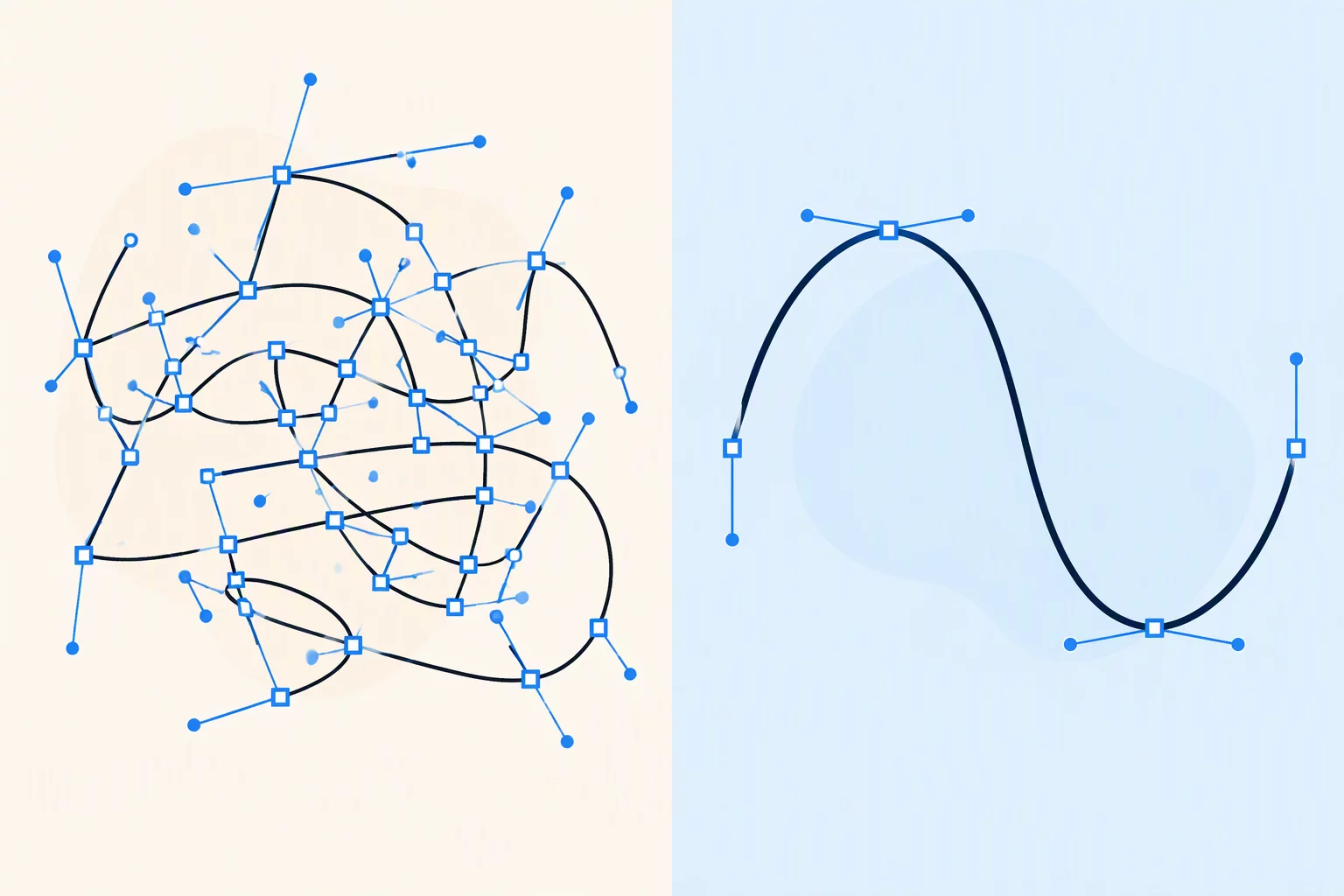
In addition to mechanical wear, weeding fragmented material becomes practically impossible. Tiny vinyl islands detach from the carrier sheet or adhere to adjacent scrap areas during waste removal. Inspecting the vector node map before sending paths to the send panel reveals whether a shape consists of an integrated single boundary or a hazardous cluster of independent loops.
03. Optimal Trace Pre-Processing Parameters
Avoiding fragmented output starts before clicking the final Trace button. Silhouette Studio provides several calibration sliders within the Trace panel that directly govern boundary sensitivity and path clustering:
- High Pass Filter Calibration: Turn off High Pass Filter for solid graphics and logos. Leaving it enabled forces the software to detect internal gradients rather than overall silhouette bulk.
- Threshold Slider Regulation: Restrict the Threshold slider between 40% and 55% for standard black-on-white assets. Pushing past 60% rapidly pulls low-contrast compression halos into standalone paths.
- Scale Pre-Conditioning: Double the bitmap resolution externally using nearest-neighbor scaling before import, hardening anti-aliased transitions into steep two-tone edges.
Once these settings are calibrated, test the preview by toggling the yellow highlight overlay. The yellow area should represent a solid, unified mass without fragmented yellow pinholes or detached outer flecks before clicking the Trace command.
04. Compound Paths, Welding, and Vector Merging
If a trace operation has already produced a cloud of separate fragments, manual re-consolidation saves the project from total redrawing. Begin by selecting the vector group and executing Release Compound Path. This unlinks every sub-path, exposing individual loops with bounding boxes. Inspect the shapes closely to select and delete tiny stray specks that do not contribute to the essential silhouette.
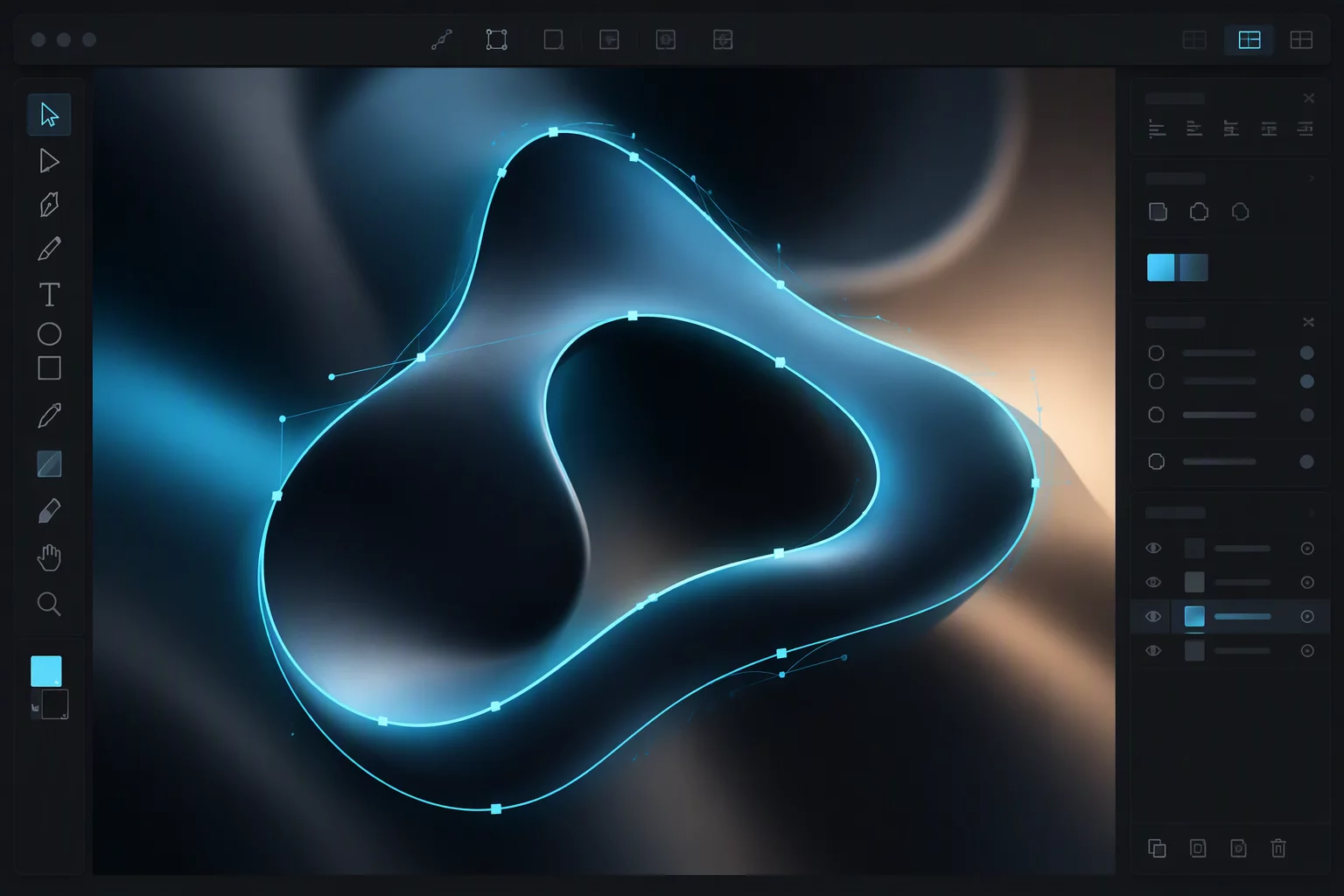
For overlapping or concentric rings created by anti-aliasing, select the primary overlapping pieces and open the Modify panel. Executing the Weld command fuses overlapping boundary outlines into a single unified perimeter, instantly dissolving interior boundary friction. Finish by selecting remaining inner openings (such as the centers of letters like O, P, and B) together with the outer frame and applying Make Compound Path, restoring crisp negative space without leaving detached vector debris.